

Your iPhone is now your MBANK card
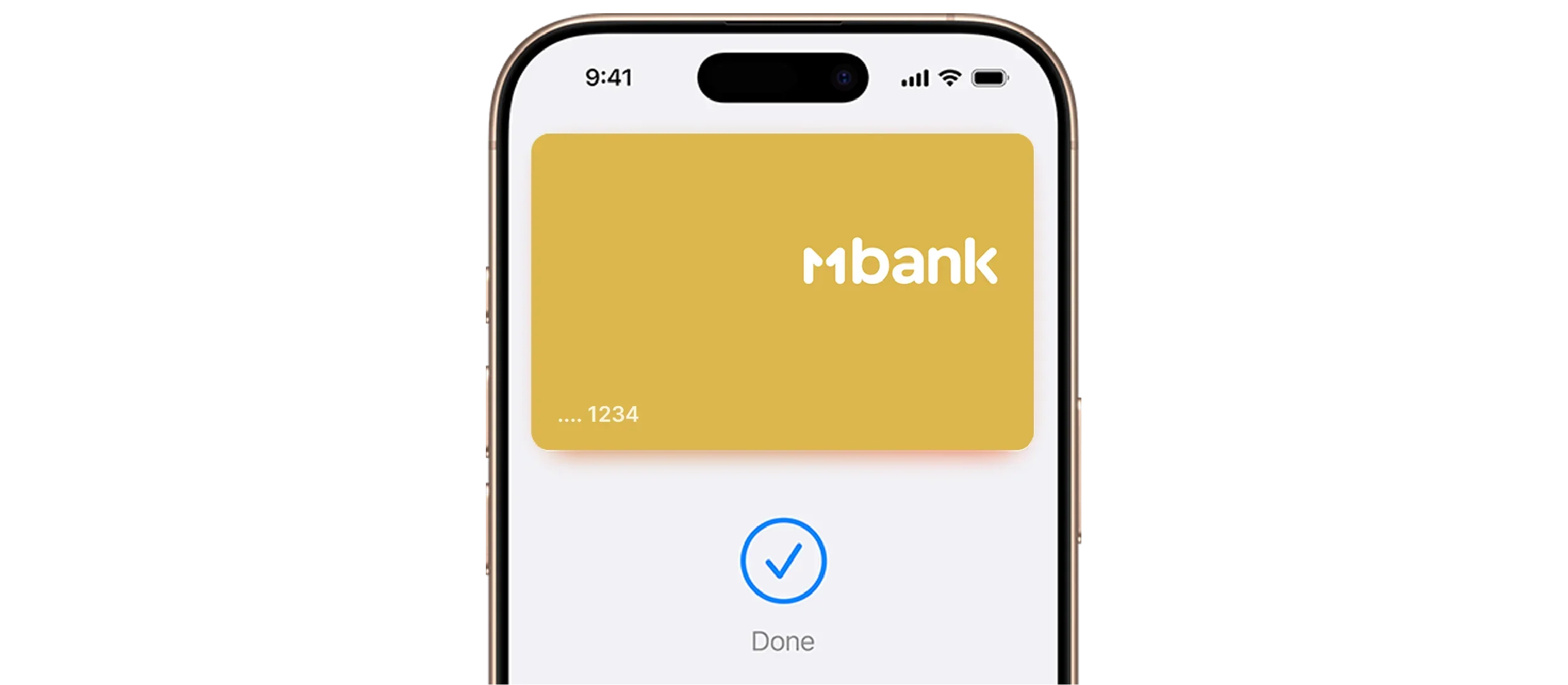
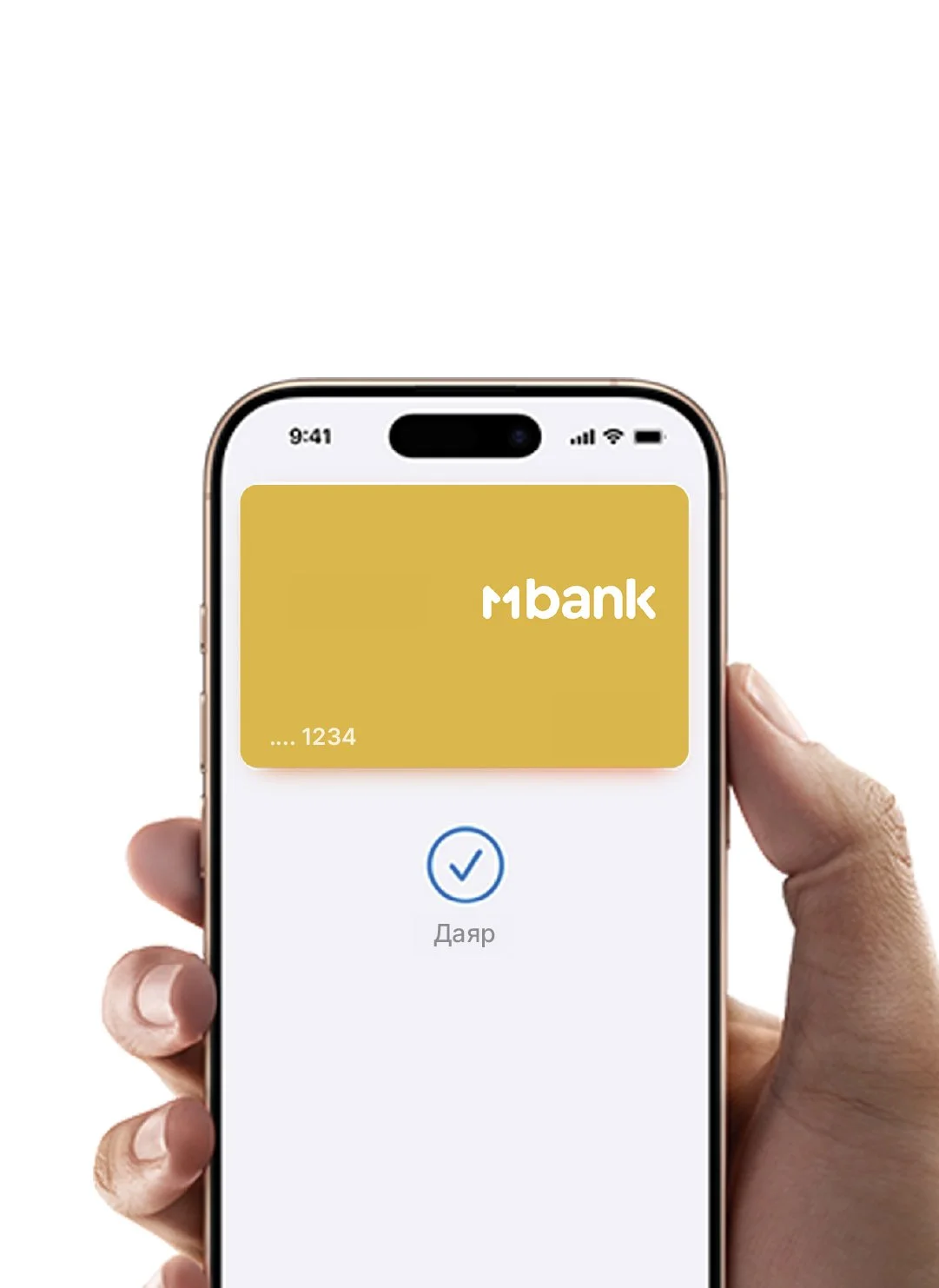
An easy, secure, and private way to pay
Apple Pay allows you to use your MBANK card on your favorite Apple device - in store, online, or in apps.
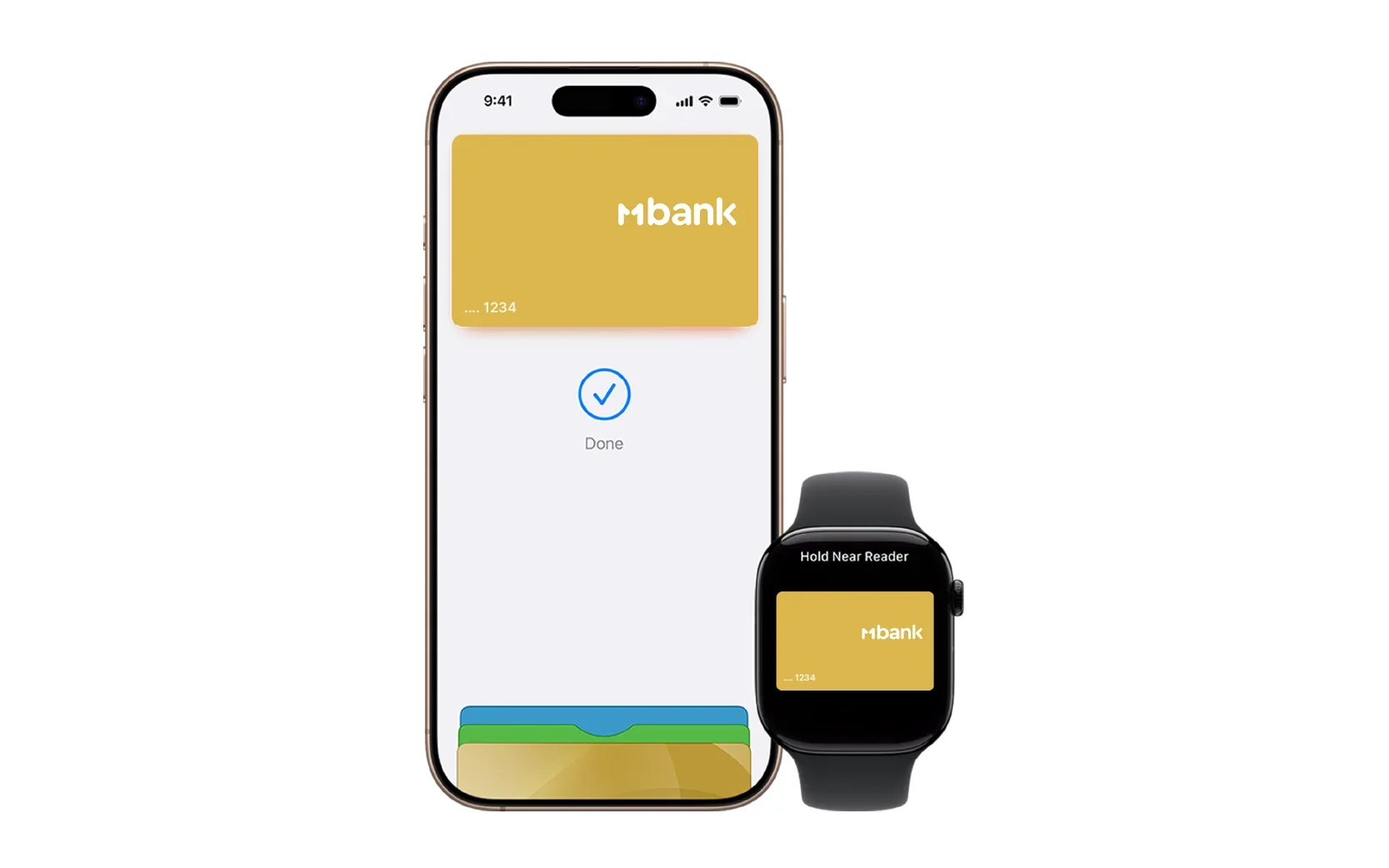

Apple Pay on all
Apple Pay is built into iPhone, Apple Watch, Mac, iPad, and Apple Vision Pro. Set it up in a few steps and you can easily use your MBANK card across all your Apple devices to make purchases online, in apps, and in person.
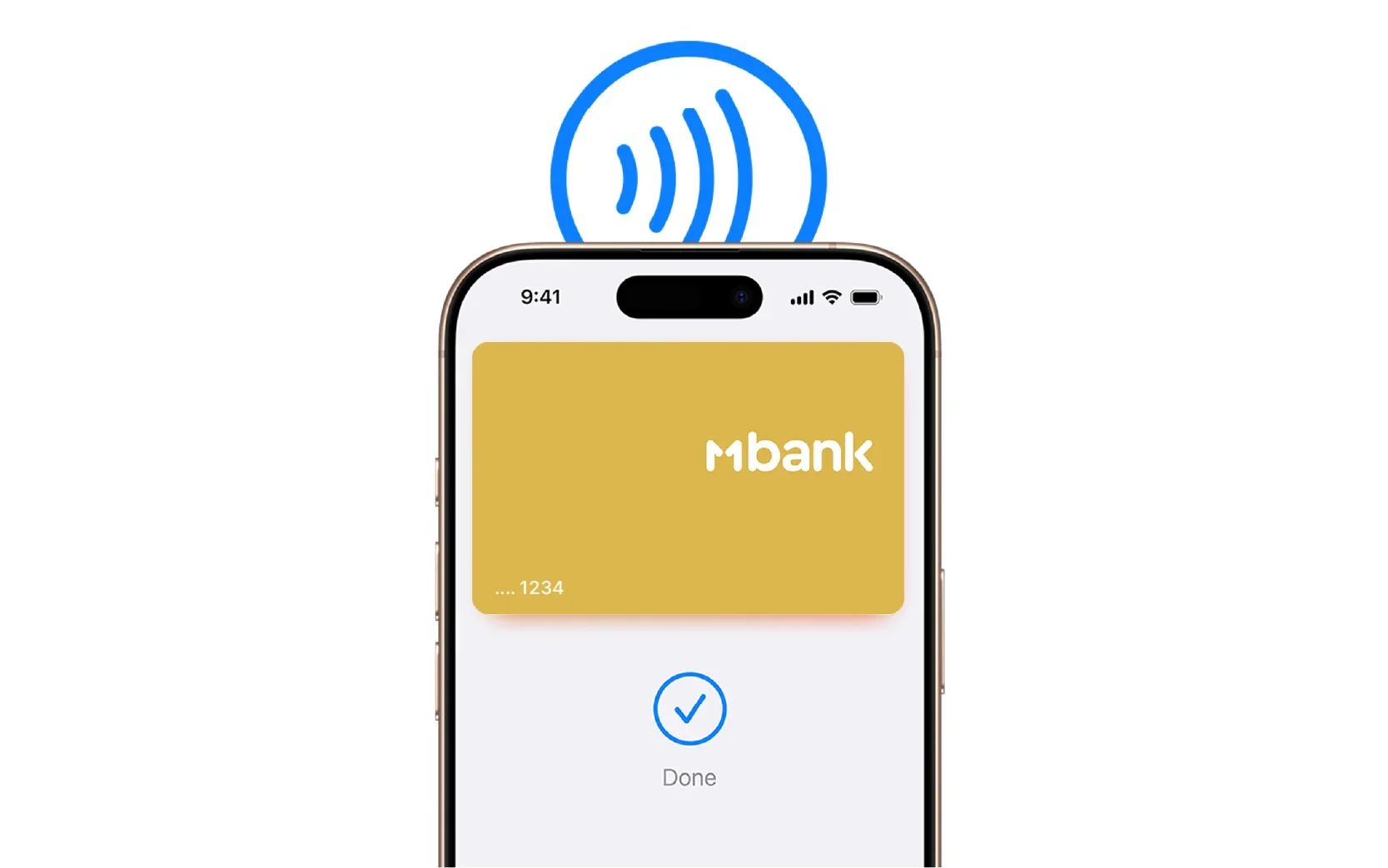

Shop anywhere
You can easily pay with your MBANK card using Apple Pay anywhere you see Pay or the symbol at checkout. Apple Pay is accepted by millions of merchants around the world and works wherever contactless payments are accepted.
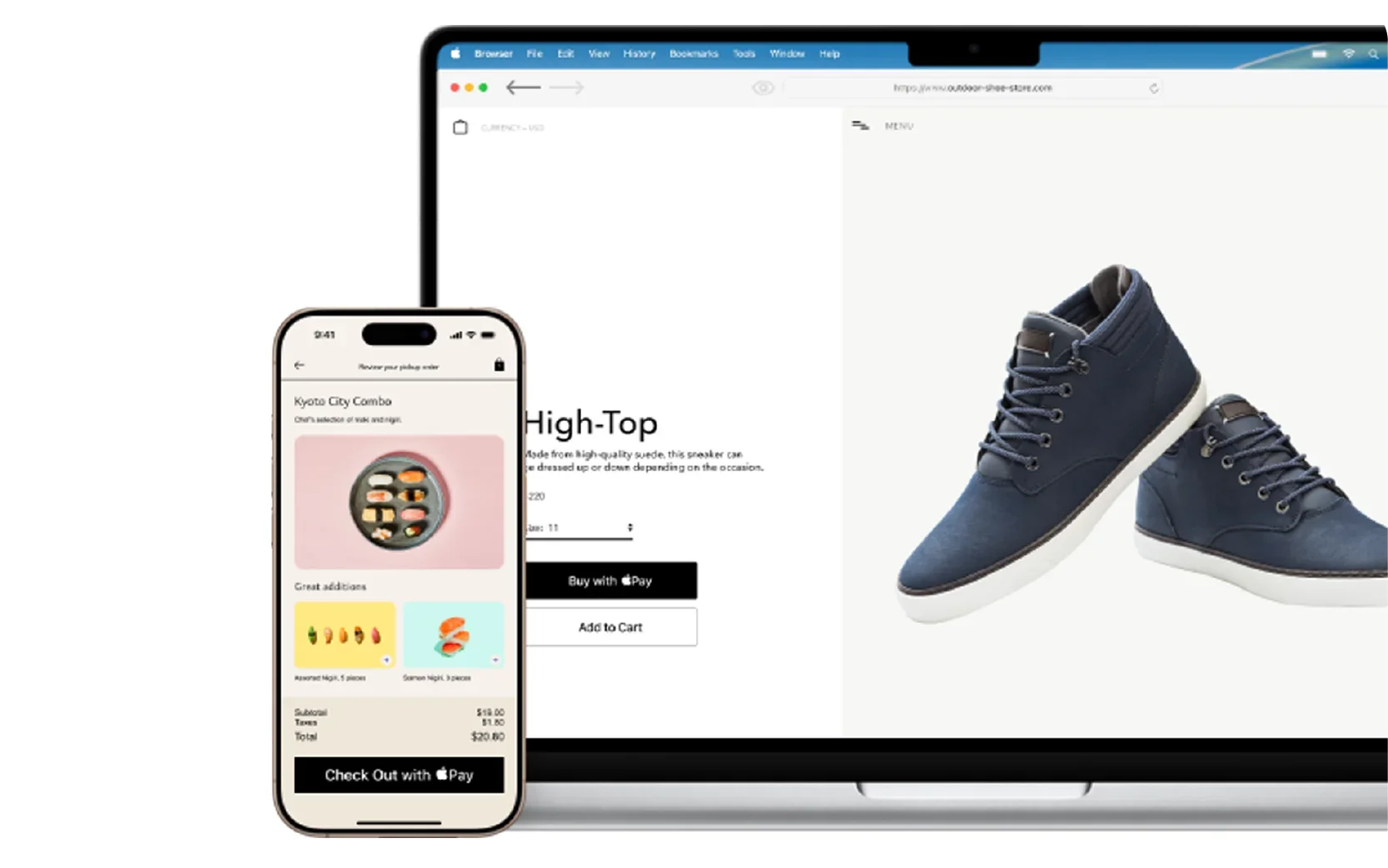

Tap. Pay. Done
Apple Pay is a secure way to pay with your MBANK card using just a simple touch or glance - online and in apps. You can skip entering your personal information, including your card number or security code. Apple Pay lets you check out with Face ID and Touch ID - helping you save time while you complete purchases with your MBANK card online and in apps.
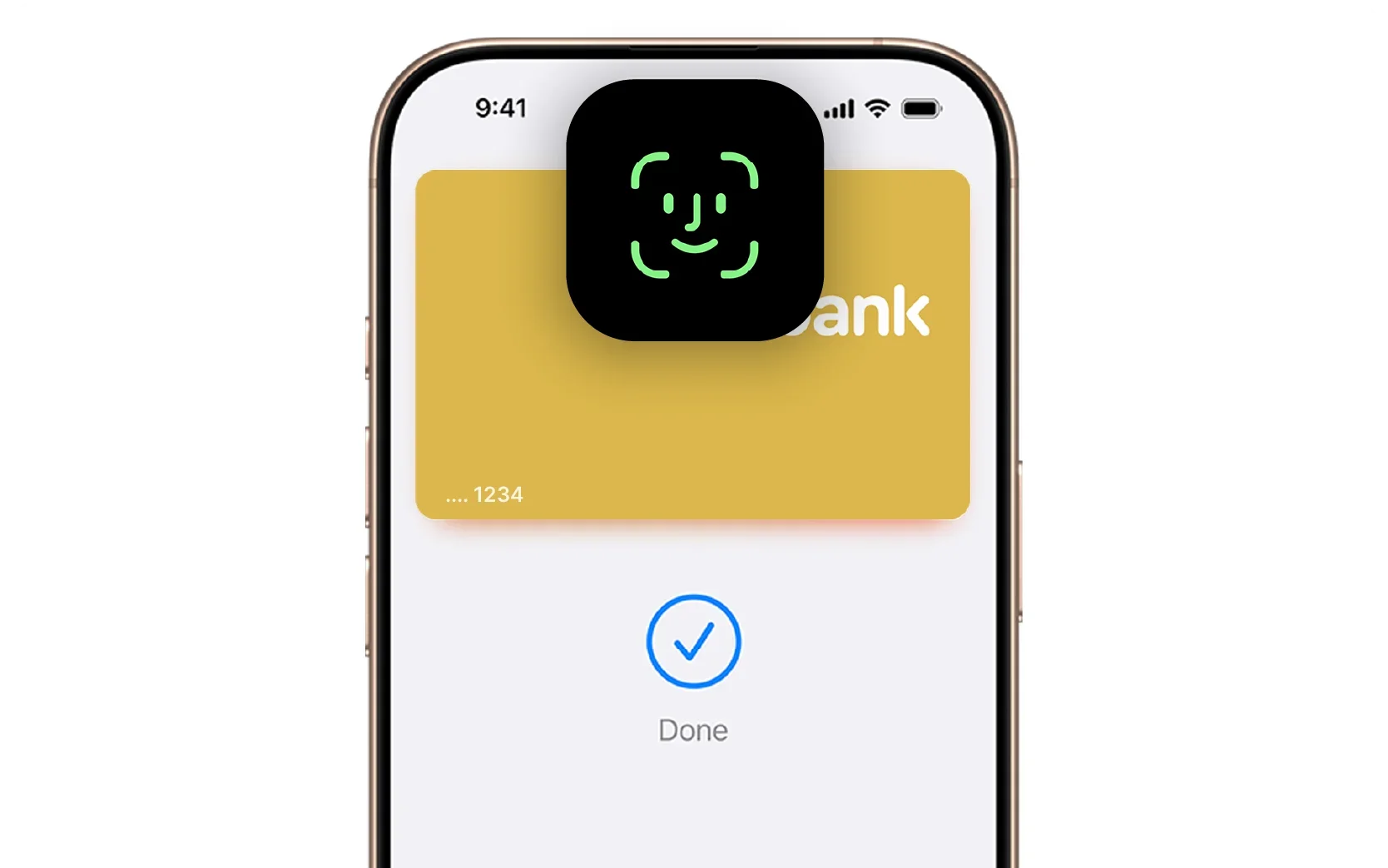

Designed to be secure
Apple Pay uses the privacy and security features built into your Apple device. Every payment requires authentication through Face ID, Touch ID, Optic ID, or your passcode. So only you can authorize payments with your MBANK card.
Add your MBANK card in a few steps.
Open the MBANK app and go to the "My Bank" section.
Select the card you want to add to Apple Wallet.
Tap "Add to Apple Wallet."
Check the card details and tap "Next".
Review the terms and confirm adding the card.
You're all set! The card has been added to Apple Wallet and is ready for payments via Apple Pay.
FAQ
Which MBANK cards are supported?
All MBANK debit cards — Visa and Mastercard. Credit cards are not supported at this stage.
Which devices support Apple Pay?
iPhone, Apple Watch, iPad, Mac, and Apple Vision Pro. The device must run iOS 10 or later.
How do I add an MBANK card to Apple Pay?
Open Wallet → tap “+” → select “Debit Card” → scan your card with the camera → confirm via SMS code.
Alternatively, you can add the card directly in the MBANK app under the “Cards” section. It takes less than two minutes.
How many cards can I add?
Up to 10 cards per device. If you have multiple MBANK cards, you can add all of them.
Is there a fee?
No. Apple Pay activation and all transactions are free of charge. Standard fees apply as per your regular MBANK card terms.
Are there any transaction limits?
There are no separate limits for Apple Pay — the same limits as your MBANK card apply. You can check your limits in the app or by calling 3333.
Where can I pay?
Anywhere contactless payments are accepted — stores, restaurants, gas stations, pharmacies, and public transport. Look for the Apple Pay or NFC symbol at checkout. Works worldwide, including online stores and apps.
Do I need internet to pay?
In stores — no. Payments are made via the NFC chip without an internet connection. For online purchases, an internet connection is required, as with any online payment.
How secure is it?
Your actual card number is never shared with merchants or stored on your device — a secure token is used instead. Each transaction is authenticated with Face ID, Touch ID, or your device passcode. Only you can authorize payments.
What should I do if I lose my phone?
Go to iCloud → “Find My” → enable “Lost Mode” — Apple Pay will be automatically disabled. Your funds remain safe. To block your card, call 3333 or use the MBANK app.
My card won’t add — what should I do?
Check three things: your device supports Apple Pay, your iOS version is up to date, and your card details are entered correctly. If the issue persists, contact support via the MBANK app chat or call 3333.
Can I still use my physical card?
Yes. Your card continues to work as usual. Apple Pay is an additional payment method, not a replacement for your physical card. It’s convenient to have both options.